
PAWPAL · USAGE GUIDE
How to organise cat and dog vaccination records
When your vet gives you a vaccination date, choose your pet in PawPal and save the appointment as pending. Set a reminder if you want a notification. After the visit, mark the vaccination as given so you can tell what happened from what is still due. Your vet sets the vaccination schedule.
18-SECOND WALKTHROUGH
Watch a vaccination record being saved
Follow the same steps in your app:
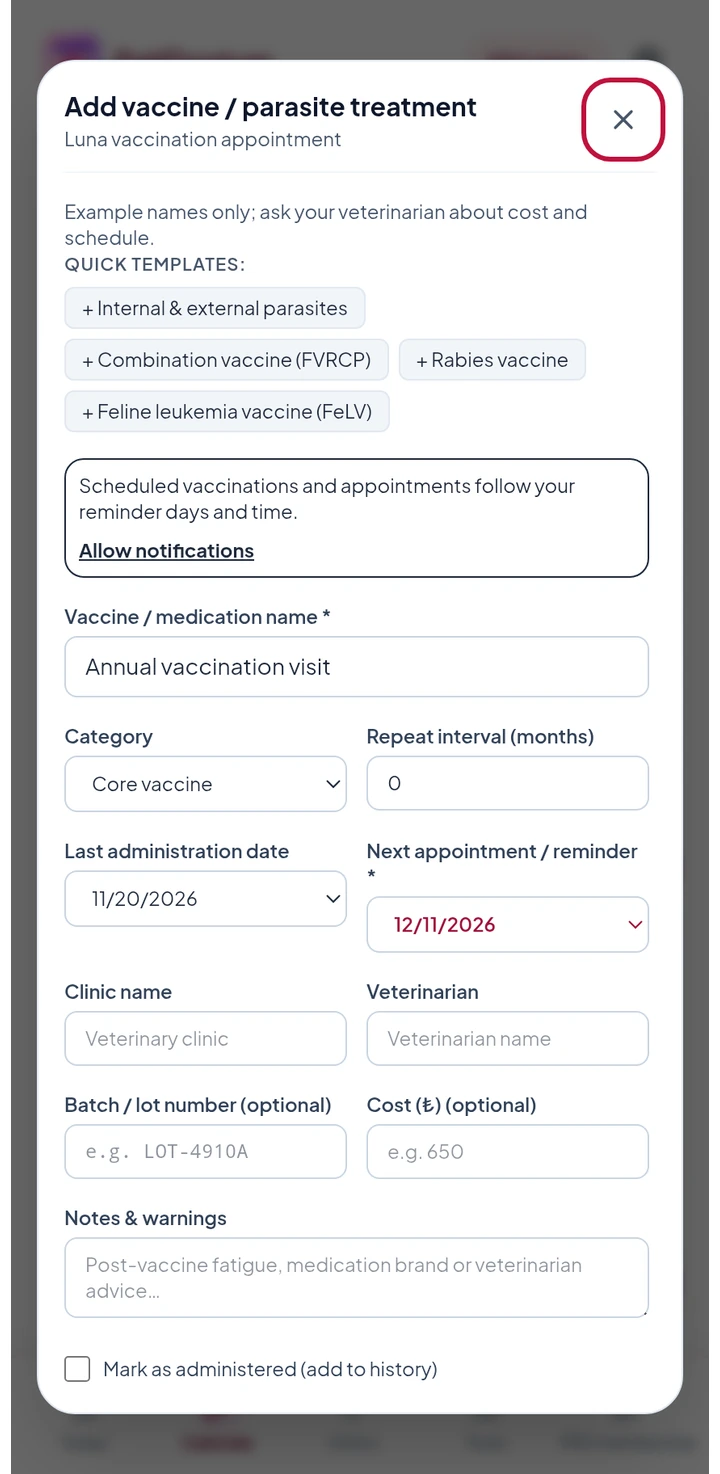
- Choose the correct pet. Open Calendar → Add vaccination and enter the name and dates given by your vet.
- Tap Save. Dates and templates shown are sample records, not a vaccination recommendation.
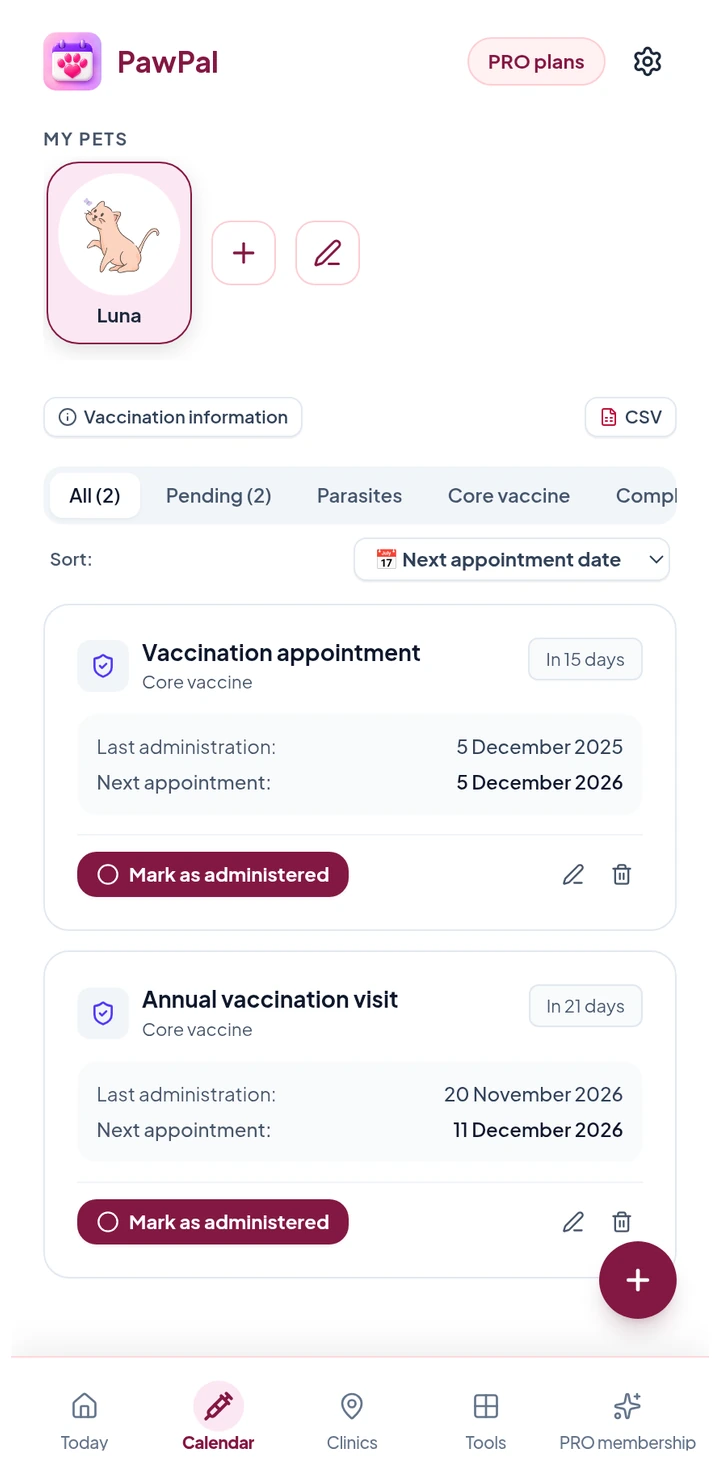
- Check Pending and the next appointment date. Do not mark an unadministered vaccine as complete.
English on-screen captions. Real Android emulator capture, development version 1.0.21, with sample records. The current Google Play release may look slightly different. Quiet original instrumental; you control playback and sound.
Video transcript
- Choose the correct pet. Open Calendar → Add vaccination and enter the name and dates given by your vet.
- Tap Save. Dates and templates shown are sample records, not a vaccination recommendation.
- Check Pending and the next appointment date. Do not mark an unadministered vaccine as complete.
Start with the correct pet
After the introduction, choose your pet’s species and enter a name and the details you know. You do not have to begin with a preloaded cat or dog. Before adding a record, check the selected pet at the top of the app. The same profile is available across sections, so you do not need to re-enter its identity.
What belongs in a vaccination record?
Use the vaccine name, planned or administered date, and clinic details from your pet’s existing record. If a name or date is unclear, ask the clinic rather than guessing.
- Pet: the profile the record belongs to.
- Vaccine name and type: information supplied by the vet.
- Appointment date: the planned future visit.
- Completion status: updated once the vaccination has actually been administered.
- Notes: relevant instructions supplied by the clinic.
Keep planned and completed events separate
If your vet schedules an appointment for 12 November, enter it as a future event. Entering the date does not mean the vaccination has been given. Update the status after the visit, or change the date if it is postponed. Pending and completed calendar filters help you review the distinction.
Check that the record was saved correctly
- Select the correct pet profile.
- Create and save the vaccination record.
- Check its date and status in the calendar.
- Return to Today and review upcoming records.
- Reopen the app and confirm the record remains.
When reporting a problem, send the app version, phone model, Android version and steps taken. You do not need to share private pet or owner details.
A reminder is not a backup
A notification is an alert scheduled on your device for an upcoming date. A backup is a file copy of your records. Granting notification permission does not upload your records to a cloud account. Export a backup before changing phones or uninstalling, then restore it on the destination device.
Does the app prescribe a vaccination schedule?
This guide does not provide a medical vaccination programme or dosing advice. Your veterinarian should make that plan using your pet’s age, history and health. PawPal records the plan you receive; it does not replace an official vaccination booklet.
Example: an appointment has been postponed
Suppose a fictional appointment supplied by your vet moves from 12 to 15 November. Open the correct animal’s pending record, update it from the new information and save. Marking the old appointment complete and adding another completed vaccination creates a misleading history of work that did not happen.
Reopen it and read the new date, pending state and note. Check the calendar filter and animal selection. After the vaccination actually happens, compare the details with the vaccination booklet; ask the clinic about discrepancies.
If the booklet is incomplete
Do not guess an unreadable name or date from a similar entry. Note what needs confirmation and ask the clinic. PawPal records do not automatically synchronise with the clinic’s official records. These dates illustrate filing, not a vaccination interval or health recommendation.
Related guides
How to organise pet care reminders
Organise grooming and daily care by pet profile. Learn how completion status, saving and Android notification permissions work in PawPal.
Read the guide ↗Backups and emergency QRPet record backups and emergency QR cards
Understand file backups, PDF summaries and emergency QR cards in PawPal. Learn what is shared and what to check before changing phones.
Read the guide ↗