
PAWPAL · USAGE GUIDE
How to organise pet care reminders
To track a care task in PawPal, choose the pet and set the date. For a reminder, choose a time and allow notifications on your phone. When you finish the task, mark it complete and save. Open Today and select the same pet to check what you recorded.
18-SECOND WALKTHROUGH
Complete care and check the Today screen
Follow the same steps in your app:
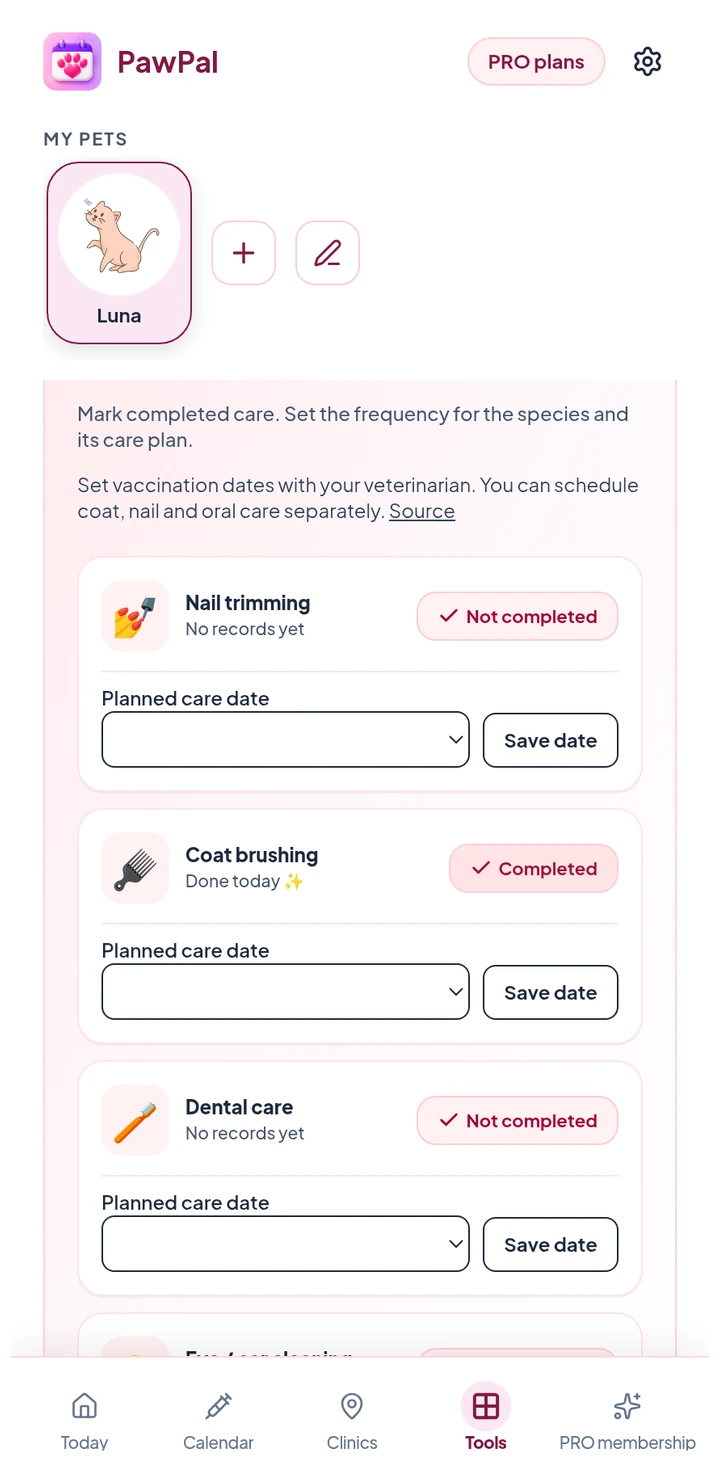
- In the Tools tab, open Water and care. Mark a care task complete; tap the same control to undo a mistake.
- Tap Save and return to Today to keep the change.
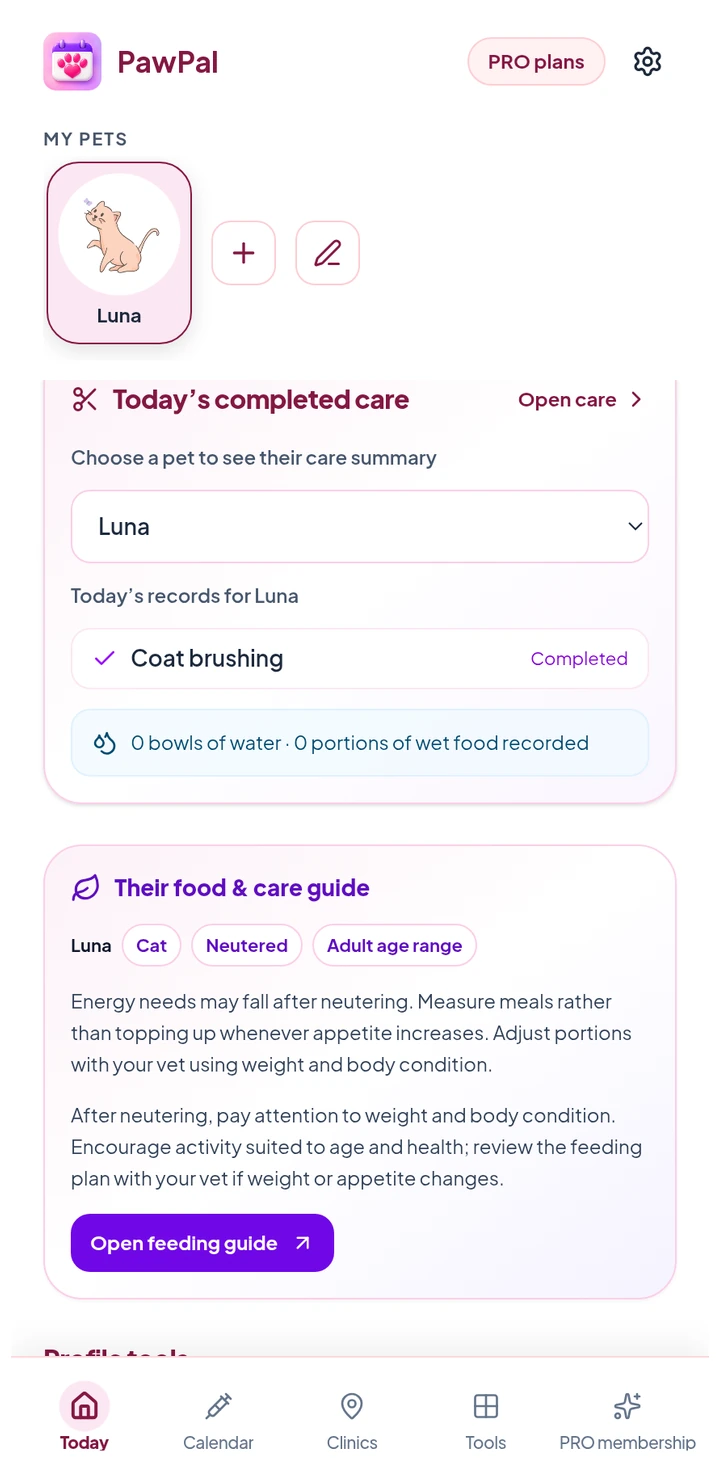
- Select your pet under Today’s care and check the saved task.
English on-screen captions. Real Android emulator capture, development version 1.0.21, with sample records. The current Google Play release may look slightly different. Quiet original instrumental; you control playback and sound.
Video transcript
- In the Tools tab, open Water and care. Mark a care task complete; tap the same control to undo a mistake.
- Tap Save and return to Today to keep the change.
- Select your pet under Today’s care and check the saved task.
Care records and diary notes serve different purposes
A care record tracks a planned or completed task. A diary note keeps an observation from that day. For example, record brushing as a care task and a change you noticed as a diary note. An observation is not a diagnosis; discuss concerning changes with your veterinarian.
Choose routines for the individual pet
The grooming agenda includes nail trimming, coat brushing, dental care, ear/eye cleaning and bathing. Not every task is suitable for every pet at the same interval. Follow your vet’s or grooming professional’s guidance on frequency. A task label in the app is not an automatic medical instruction.
Use completion status accurately
- Select the pet at the top of the app.
- Update the status of the care task you performed.
- If marked completed by mistake, use the same control to undo it.
- Save the changes.
- Check the selected pet’s care summary on Today.
Keeping future tasks separate from completed care makes it easier to see what actually happened.
What to check if a notification does not arrive
Check the in-app setting, then Android’s notification permission for PawPal. Is the scheduled date and time correct? Is the notification channel enabled? Battery and background restrictions can affect alerts too. Setting names vary between manufacturers.
Create a sample reminder for a nearby time and test with the phone locked. Sound and vibration depend on device settings. Do not make a critical veterinary appointment depend on a single app reminder.
Review your routine regularly
Review upcoming tasks each week, update postponed dates and mark only tasks that were actually completed. When working with different pets, check which profile is selected. The free plan includes one pet. Family sharing and shared records are not enabled in this release.
If care is missing from Today
- Read the selected animal and the date of the completed task.
- Check the state after Save, not only the changed button.
- Select the same animal on Today. Do not compare yesterday’s care with today’s summary.
- If the state is wrong, correct the existing record before creating a duplicate.
Yesterday’s grooming being absent from Today does not mean yesterday’s record was deleted. Return to that date first. In a household with two animals, check title and profile together before marking anything complete.
This workflow records your observation of work actually done. The app does not decide how often a task is needed or whether it suits the animal; agree the care plan with your professional.
Related guides
How to organise cat and dog vaccination records
Keep planned appointments separate from completed vaccinations in PawPal. A practical guide to pet selection, dates, reminders and record checks.
Read the guide ↗Backups and emergency QRPet record backups and emergency QR cards
Understand file backups, PDF summaries and emergency QR cards in PawPal. Learn what is shared and what to check before changing phones.
Read the guide ↗