
PAWPAL · USAGE GUIDE
Pet record backups and emergency QR cards
Moving to a new Android phone? Export a PawPal backup from Settings, transfer the file securely and restore it on the new phone. To share a few details with a vet or pet sitter, choose the fields for an emergency QR card instead. Anyone who scans the card can read the details you include.
18-SECOND WALKTHROUGH
How to save a file backup
Follow the same steps in your app:
- Open Settings and Backup. Under Export data, tap Download as JSON.
- Choose a folder in the Android file picker, then tap Save. Note the filename and folder.
- Check the saved JSON file in the folder you chose and keep the file somewhere safe. This is not automatic cloud backup; the file may contain personal information.
English on-screen captions. Real Android emulator capture, development version 1.0.21, with sample records. The current Google Play release may look slightly different. Quiet original instrumental; you control playback and sound.
Video transcript
- Open Settings and Backup. Under Export data, tap Download as JSON.
- Choose a folder in the Android file picker, then tap Save. Note the filename and folder.
- Check the saved JSON file in the folder you chose and keep the file somewhere safe. This is not automatic cloud backup; the file may contain personal information.
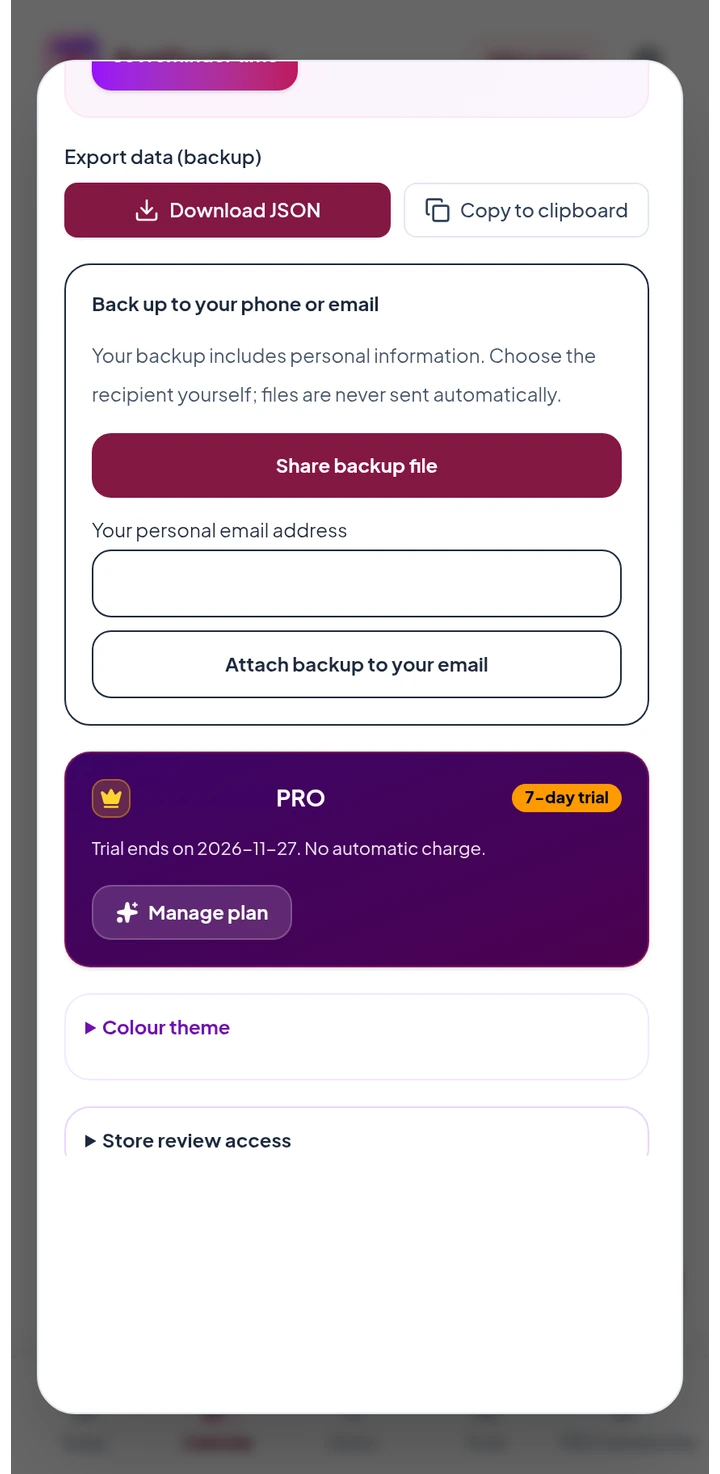
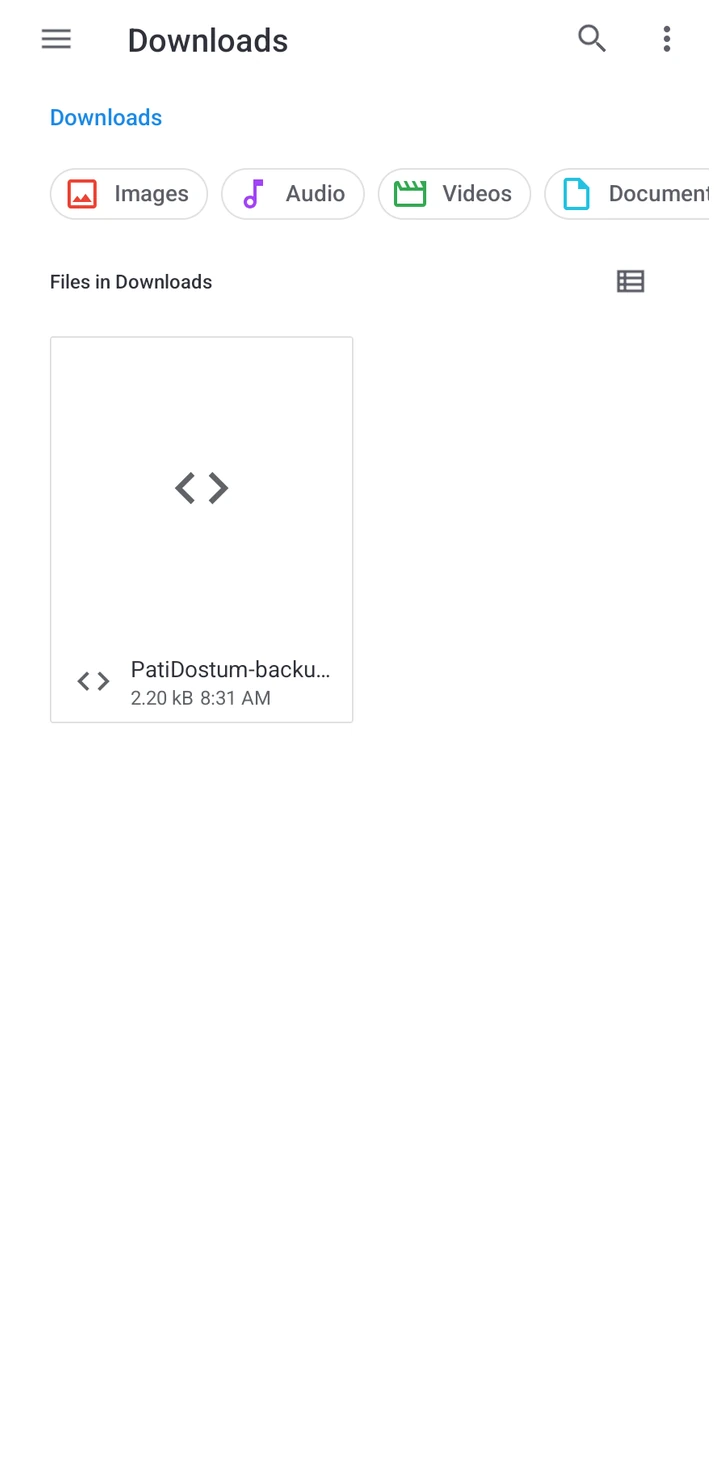
Backups, PDFs and QR cards have different purposes
| Format | Purpose | Limit |
|---|---|---|
| File backup | Export records for restoration. | You need to keep a current copy. |
| PDF summary | Share a readable record summary. | Not a database restore file; availability may depend on plan. |
| Emergency QR | Show selected details on another phone. | Anyone with the code may read them; not an official chip lookup. |
Back up before changing phones
- Open the backup section in PawPal settings.
- Export a file backup.
- Confirm the file exists and check its date.
- Keep a copy in a secure location outside the app.
- After restoring on the new device, check pets, records and photos.
Uninstalling the app or clearing Android app storage can delete local records. Back up first. If you want an email copy, attach the file yourself using your email app. This website does not send automatic email backups.
How does a veterinarian open the QR card?
Fill in the relevant pet and emergency contact fields, then choose which details to display. When the QR contains a phone-card link, another phone’s camera can open that link in a browser. An internet connection is needed. Test a sample card on a second device before relying on it.
Selected details are carried in the link’s # fragment. This release does not create a pet health database or chip-search directory on our server. Anyone receiving the QR or link can read, copy and share those details. Avoid including unnecessary private information.
Does entering a microchip number retrieve official records?
No. The app stores the number and profile information you enter. It does not query an official pet or owner register. Entering a chip number does not verify ownership or identity. Owner-finding and shared server services are not enabled in this release.
Does deleting records cancel a subscription?
No. Deleting local data and cancelling a Google Play subscription are separate actions. Read our data deletion page for the relevant steps. Backups, PDFs and shared QR copies may remain outside the app and must be managed separately.
Check the content before sharing a QR
Update the animal profile, choose the fields to share and generate the card again. On a second device, read the result and check that only necessary fields appear. Do not post real private details on social media to test it. A copied link or screenshot may carry the same information.
Do not assume that changing the profile updates a QR image already sent. Check the new card and tell the recipient which copy is current. The app cannot establish that someone else deleted an old screenshot.
Verify the backup separately
A working QR does not prove a backup is sound. Note the backup time and location. After restoration on a new device, open animal profiles, records from different dates and photos. If anything is missing, keep the old device and original file. Describe error steps to support rather than attaching a QR link or complete backup.
Related guides
How to organise cat and dog vaccination records
Keep planned appointments separate from completed vaccinations in PawPal. A practical guide to pet selection, dates, reminders and record checks.
Read the guide ↗Care and remindersHow to organise pet care reminders
Organise grooming and daily care by pet profile. Learn how completion status, saving and Android notification permissions work in PawPal.
Read the guide ↗